# Main functions
Letter Order has features that facilitate the learning process and are useful tools for achieving positive results in the classroom.
Students reinforce their reading and writing skills through activities and exercises.
# Main menu
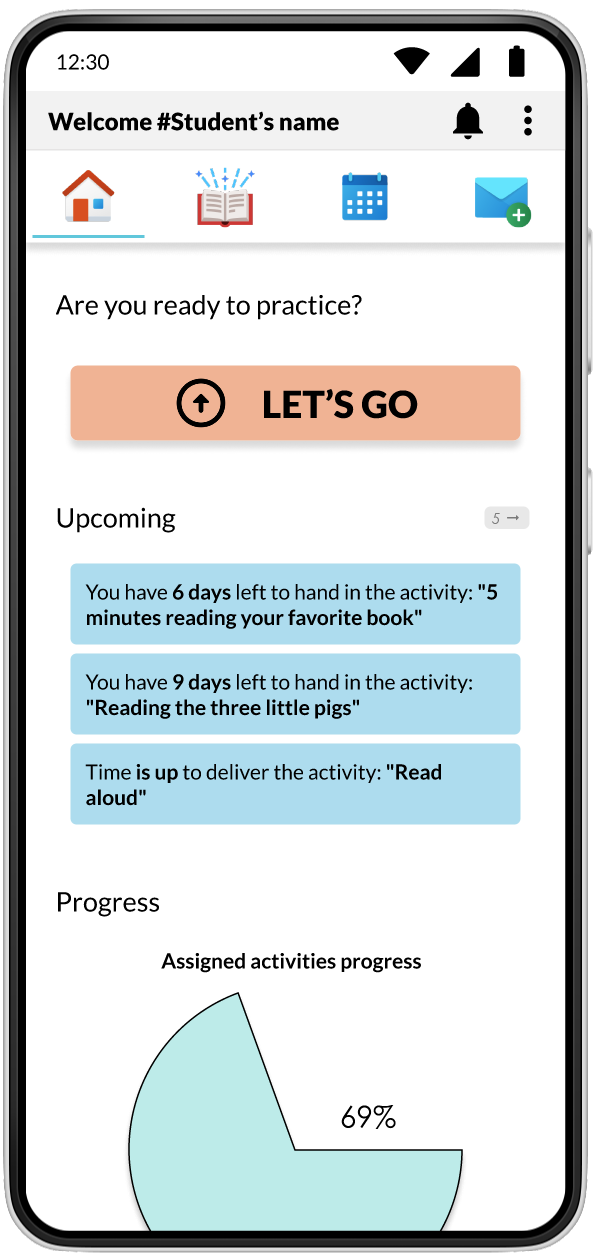
When logging in, the main screen will display the main menu, an invitation to practice, followed by a list of pending activities to be performed and below that a graph showing the progress of the assigned activities.
[](https://docs.letterorder.com/uploads/images/gallery/2023-05/RuVimage.png)
The menu that will be used consists of 4 sections.
[](https://docs.letterorder.com/uploads/images/gallery/2023-05/0RXimage.png)
#### **Home**
The Home screen is displayed when you start the application. It's function is to show recent activities, pending tasks, and the progress of activities.
It is the screen that you can refer to when you are in need of an overview of your overall progress.
#### **Activities**
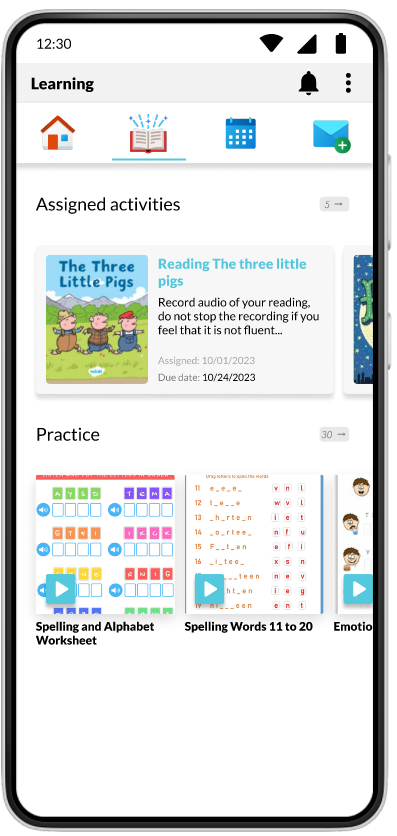
In the Activities section, you will find the activities that your teacher has assigned to you as well as practice activities that you can do on your own.
#### **Calendar**
In the Calendar section, you can view upcoming meetings. You can add personal reminders and check due dates for activities.
#### **Mensajeria**
You can find conversations with teachers, classmates, parents, and groups in the Messages section.
Also in this section, you will have access to the notices that the teacher will post in order to inform you of any important information that does not require a reply.
# Activities
The activities section is designed to control the flow of assignment, review and feedback of exercises.
#### **Assigned activities**
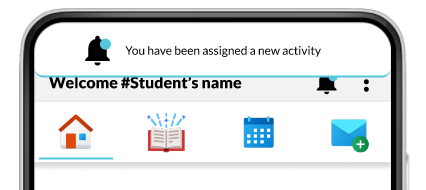
You will receive a notification when an activity is assigned to you.
[](https://docs.letterorder.com/uploads/images/gallery/2023-05/wqeimage.png)
##### To check which activities are assigned to you:
- Notification
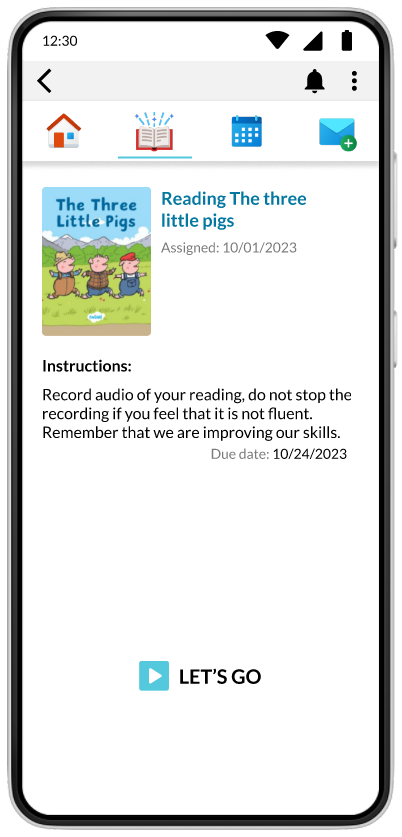
- Tap the notification to go directly to the activity.
[](https://docs.letterorder.com/uploads/images/gallery/2023-05/Wk1image.png)
- Activities screen
1. Tap activities menu [](https://docs.letterorder.com/uploads/images/gallery/2023-05/956image.png)
2. You will see 2 lists
[](https://docs.letterorder.com/uploads/images/gallery/2023-05/Mczimage.png)
3. Next to "Assigned activities" you will see the number of activities you have already assigned.
[](https://docs.letterorder.com/uploads/images/gallery/2023-05/P7zimage.png)
Drag the list horizontally to view more activities.
1. 1. tap on the activity you want to solve to visualize it.